Documentation
Domino Tournament Portal
Instruction set.

- Version: 1.0
- Author: Applicatr
- Created: 8 April, 2022
- Update: 12 May, 2022
If you have any questions that are beyond the scope of this help file, Please feel free to email via Support Page.
How to Add Registration
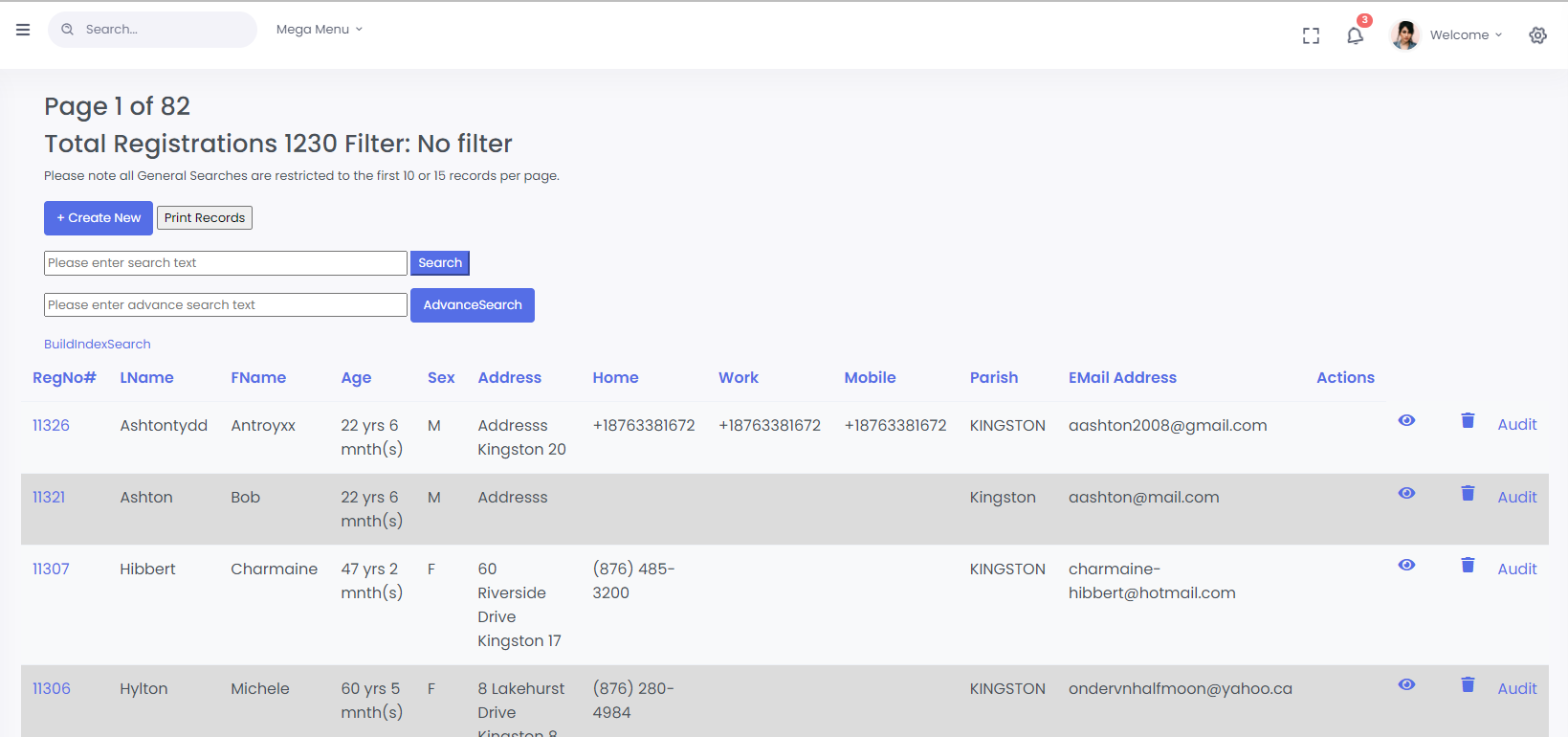
Follow the steps below to add Registrant to the Tournament Portal:
- Add New Registration.
Add Information on Candidate.-- Name
- Mobile Phone Number
- Email Address
- Parish from
- System Auto Generates Registration Number
- Search or Filter Registration records.
- Unique Registrations.
How to Create a Tournament
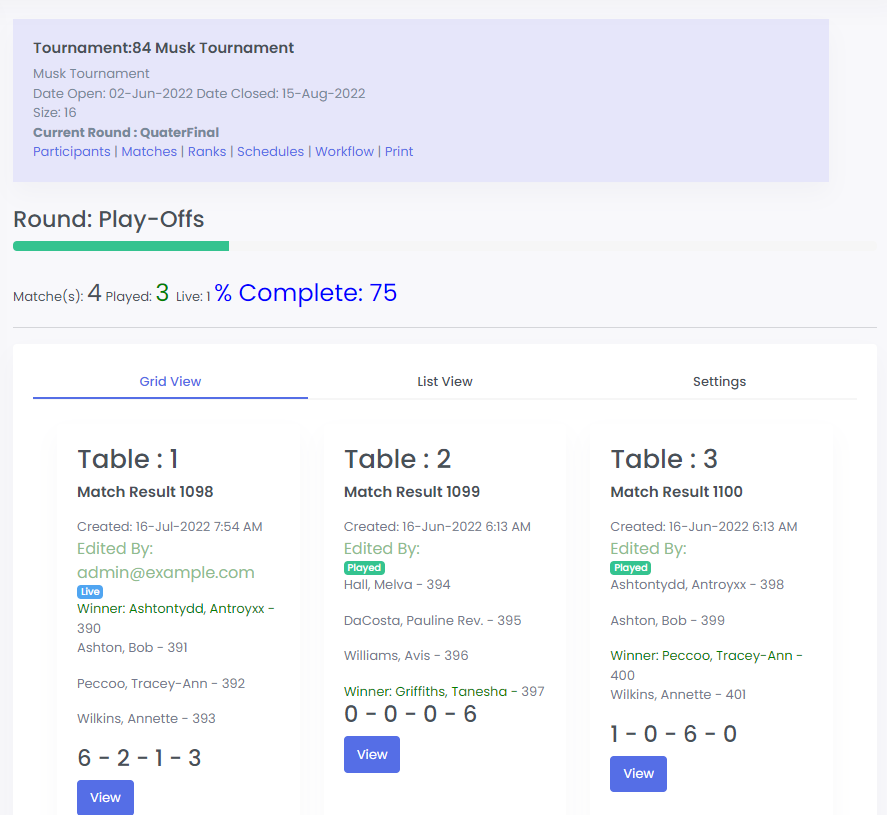
Follow the steps below to create a Tournament:
- Add New Tournament.
- Enter Tournament Dates.
Add Start and End Dates- DurationOpening Date- Tournament Opening is same as Registration PeriodStart Date- Tournament StartClosed Date- Tournament ClosedPlay-Offs- Round 1Quarter Final- Round 2Semi Final- Round 3Finals– Round 4Awards Ceromony– Awards
- Schedule Dates on Tournament Calendar.
- Specify Tournament Size.
- WebSite URL is Optional.
Participants
How to Add Participants to a Tournament:
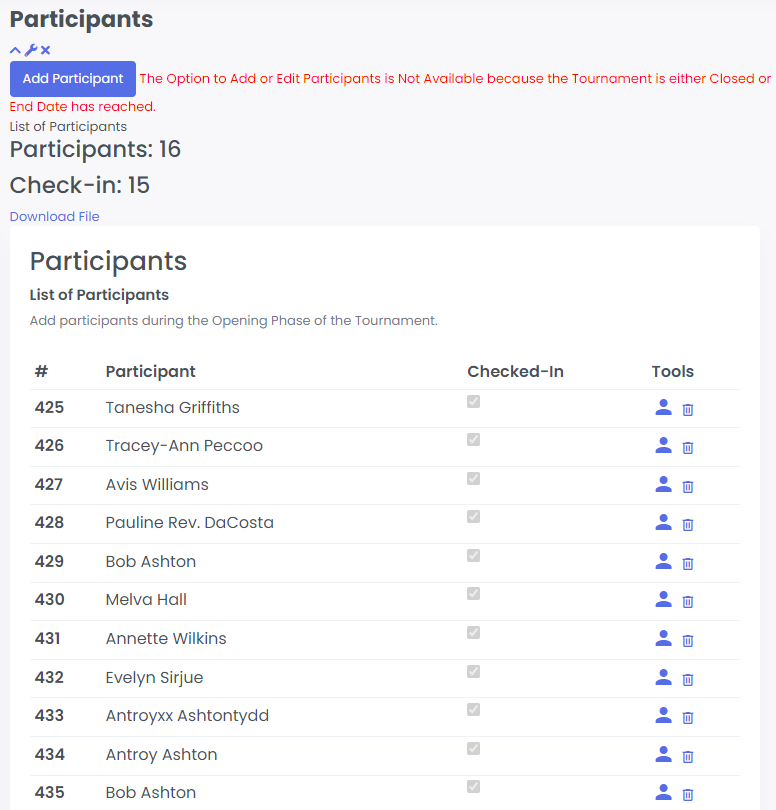
How to Add Participants to a Tournament?
Team consists of several Registrants or individuals registered with the system. Teams can be repeatedly assign to New Tournaments to make the Tournament Enrollment easy.
Particpants are Registrations assigned to a Tournament. Each time a person or individual participate in a Tournament they will be given a new Participant ID. Participants will be notified on each round that they are promoted to the next Round of a Tournament. Participants are linked to a Single Registration using Reg_No.
Goto Tournament Details and Click Add Participant or Add Team to add team members as particpants to the current Tournament. You can add as many Participants as allowed by the Tournament Size. When adding a Team, the list of team members will be each counted as a participant.
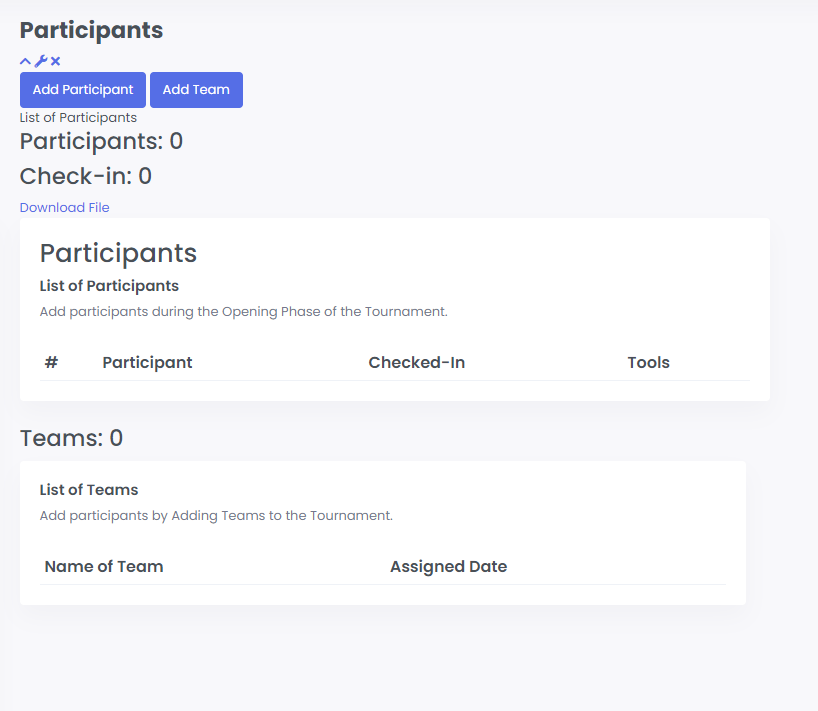
How to Add Participants to a Tournament
- Search and Locate Tournament
- Goto Tournament Details or Click on Participants from the Actions Menu
- Then Click Add Participant or Add Team
- Add Participant will Popup a Dialog asking for the Registration Number for the Participant.
- Complete the Popup Dialog Check-in Date which is associated with the Tournament Registration Period.
- Checked-In Flag is maintained if the Participant reply to the SMS recieved to Confirm Participation in Tournament.
- Tournament officials/ reigstrars can default Checked in Date and Checked-In Flag.
Participants must be Registered before they can be added to a Tournament.
Registration is a one-time process, similar to assigning a person or registrant to a Team.
How to Add Teams to a Tournament
Add Team will add all Team Members to a Tournaments as Participants.
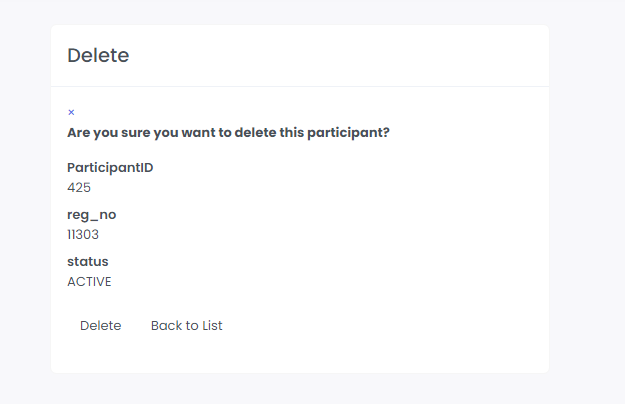
How to Delete a Participant from a Tournament
Click the Trash icon
Confirm the Delete to remove the Participants from the Tournament.
Match Results
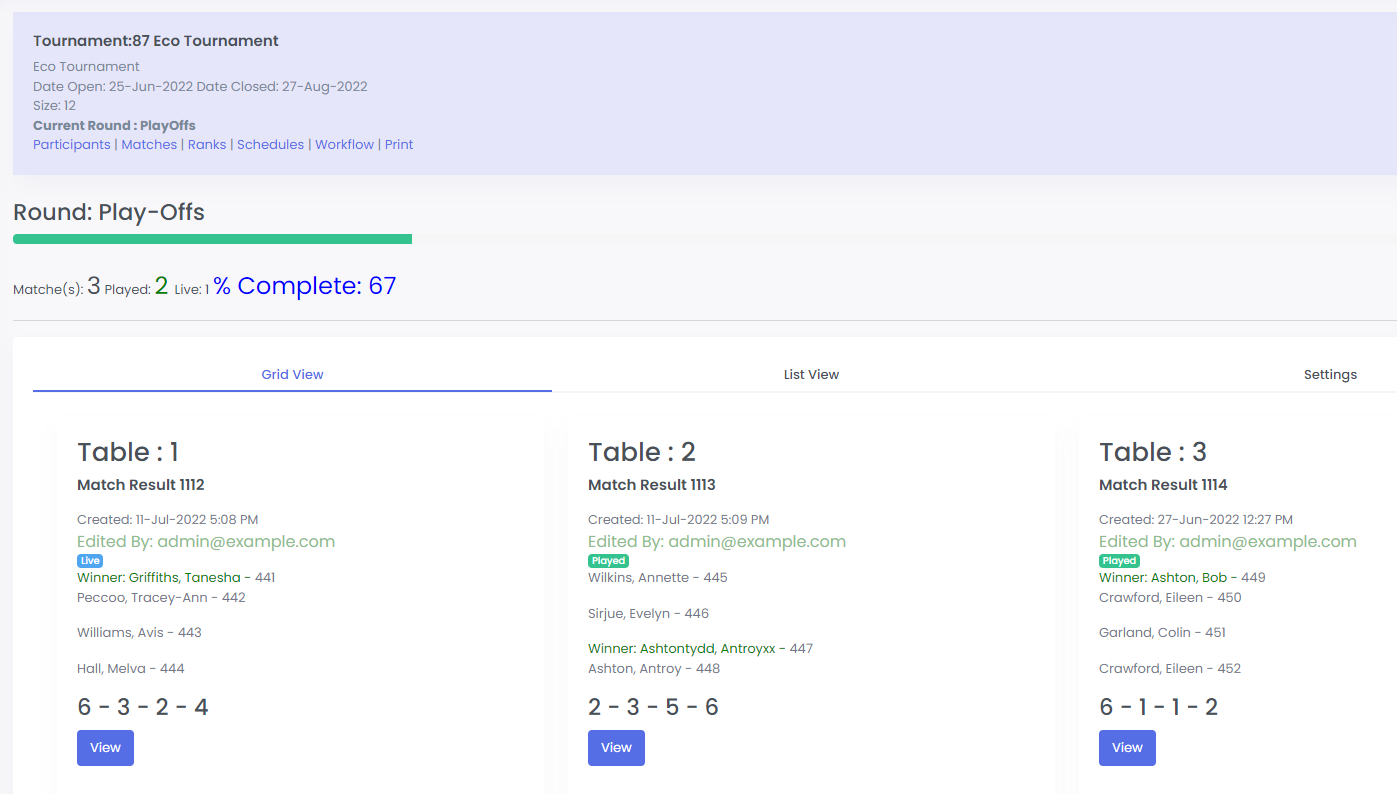
Where Can I Find Match Players?
Each Match in a Tournament is defined by 4 Players. The system automatically assign Players to Matches (Tables) as we move through the different stages of the competition.
How to Add Match Results?
Goto each Tournament Round an select a Match to Edit the Winner and Score Card. The system will keep track of the number of Wins per Participants; which will update the Tournament Rankings.
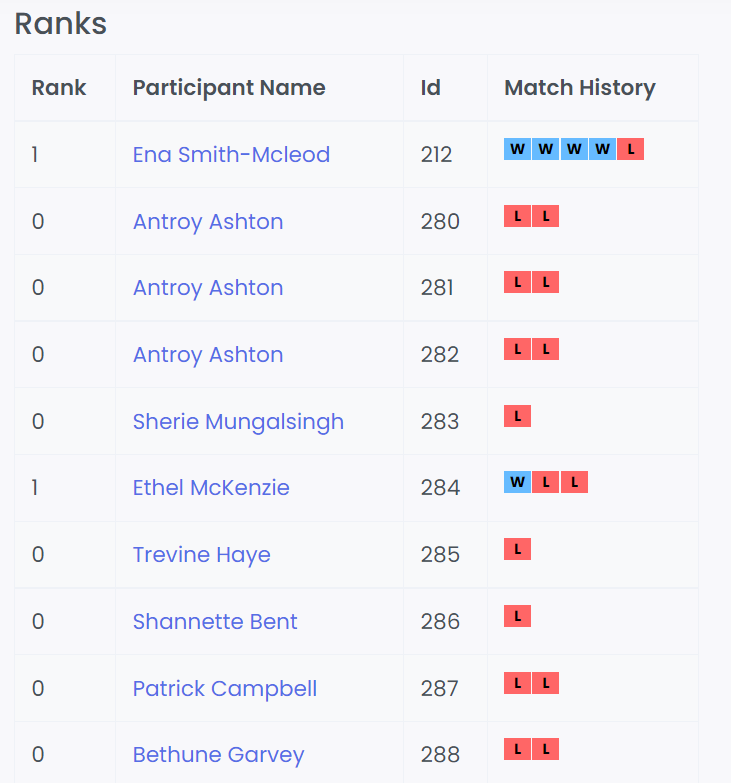
Rankings
Tournament Rankings are maintained by the system based on wins and losses.
Technical Documentation
Technical Documentation decribes the API Endpoints for Data Exchange of Tournament Information.
When a Match is updated the Results are available immediately via REST API Endpoints.
Booking Agents can use the Match Results Information to Create Bets on the Outcome of the Matches/Games.
through the stages, ensuring the business rules are met before transitioning to the next stage.
Player information is also included and the Game Officials must seek consent from Participants before publishing any data on Players.
An Audit History of the transition is kept with the user who approved the transition from previous state to the current state.
Swagger API Documentation
Go here to get the latest on the Swagger API for Data Exchange on Tournament Match Results and Players.
Workflow Manager
Each Tournament has a Workflow Instance.
When a Tournament is created it it given a workflow-id that links it with the Workflow Manager.
The Workflow Manager is an administrative tool that is used to transition the tournament
through the stages, ensuring the business rules are met before transitioning to the next stage.
For example, transitioning from :
- "Opening" to "Start" stages.
- "Play-off" to the "Quarter Final" stages.
- "Quarter Final" to "Semi Final" stages
An Audit History of the transition is kept with the user who approved the transition from previous state to the current state.
Tournament Stages
A tournament have several stages and or rounds including: Opening, Play-Offs, Quater Final, Semi-Final, Final and Award Closing Ceromony.
Registration Opening
In this phase, persons or teams are allowed to sign-up for a Tournament.
Play-off Round
Typically this is the longest round to get through with all the first set of players/participants until they are eliminated by a loss. Winners of this round advances to Quarter Final Round or Round 2. Losers in the Play-Offs will form the Particpants for the Losers Tournament.
Quarter Final Round
Quarter Final Round is the second of the elimination rounds.
Semi Final Round
Semi Final Round is the third of the elimination rounds.
Final Round
The Final is the last of the round in which the champion is determined.
Awards Ceromony
Awards Ceromony is the last stage of a Tournament.
How to Start a small Tournament ?
1. Create a New Tournament
2. Set Tournament Size to 16 or 32 , 64
Tournament Size has to be in multiples for 4, since 4 players per match.
3. Create Teams and Team Membership if they not exist
4. Add Participants to the Tournament
5. Load the Tournament Workflow Transition Manager
You need Admin or Organizer Role Permission to complete this step.
6. Click Go Command to move the Tournament Status from Opening to Start
if Participants count == Tournament Size then
Transition to the next Round. Otherwise, Give appropriate error.
7. Click Go Command to move the Tournament the NExT Round or from Current State to the Next State. eg. from Start to Play-Off
During this Transition, the participants will be automatically assiged to a match.Each Participant will receive a SMS Notification informing them of the Assignment to the various Matches in each stage of the Competition.
8. Repeat step 7 until the Final Round.
How to Add Icon to a Tournament ?
1. Goto Tournament Details
2. Click Photo Upload Image from the Tournament menu.
3. Upload Image from Computer
Images and Videos
How do we assign an avatar to a Tournament, Registration Profile.
Responsive Images
Images in Bootstrap are made responsive with .img-fluid. max-width: 100%; and height: auto; are applied to the image so that it scales with the parent element.

<img src="assets/images/screenshot.jpg" class="img-fluid" alt="Responsive image">Image lightbox
Show image popup when click on image:
<a class="popup-img" href="assets/images/screenshot.jpg">
  <img src="assets/images/screenshot-thumb.jpg" class="img-fluid img-thumbnail" alt="image">
</a>
Image Lightbox with Link
Show image popup when click on link: Click Here for Popup Image
<a class="popup-img" href="assets/images/screenshot.jpg">Click Here for Popup Image</a>Image lightbox with Button
Show image popup when click on button: Click Here for Popup Image
<a class="btn btn-primary popup-img" href="assets/images/screenshot.jpg">Click Here for Popup Image</a>Video
Video of a past Orlano Domino Tournament.
<div class="embed-responsive embed-responsive-16by9">
  <iframe class="embed-responsive-item" src="https://www.youtube.com/watch?v=XBhA23itMcY" allowfullscreen></iframe>
</div>
FAQ
A FAQ is a list of frequently asked questions (FAQs) and answers on a particular topic.
Source & Credits
Images:
- Unsplash - https://unsplash.com/
Fonts:
- Icons Font Face - https://fontawesome.com/
Scripts:
- jQuery - http://www.jquery.com/
- Bootstrap 4 - http://getbootstrap.com/
- Highlight Js - https://highlightjs.org/
- jQuery easing - http://gsgd.co.uk/sandbox/jquery/easing/
- Magnific Popup - http://dimsemenov.com/plugins/magnific-popup/
Support
If this documentation doesn't answer your questions, So, Please send us Email via Support Page
We are located in EST -5:00 time zone and we answer all questions within 12-24 hours in weekdays. In some rare cases the waiting time can be to 48 hours. (except holiday seasons which might take longer).
Changelog
See what's new added, changed, fixed, improved or updated in the latest versions.
For Future Updates Follow Us @Applicatr / @facebook / @twitter / @Dribbble
Version 1.1 (12 May, 2022)
- Added Workflow Approvals for Transitioning Tournament through Stages.
- Fixed Some minor bugs for Participants UI compatibility
- Fixed Some minor bugs for Participants UI responsive
- Updated FontAwesome to Latest Version
- Updated Bootstrap to Latest Version
- Updated Improvements in CSS and JS